 .
.View details of settings available for the following device types, understand parameter description of each setting, and monitor device health.
· TX-SKY
· TX-GO(2)
· TX-SMART
· TX-TRAILERPULSE WITH BATTERY
Use the Diagnostics overview page to view:
o details of software version installed on devices
o peripherals attached with devices
o details of TX-FLEX paired with devices
o details of firmware installed on Squarell CAN device
1. In the menu list, click
.
The Diagnostics overview page with a list of the device types is displayed, by default.
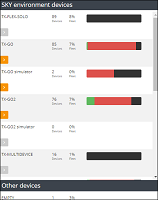
2. In the device types list, select a device type. For example, TX-SKY.
Note: The tabs displayed on this page are based on the selected device type.
3. Click the Device status tab.
A list of devices along with their status details, such as communication status and device details are displayed in a table.
1. In the
menu list, click .
A list of the device types is displayed.
2. In the device types list, select a device type. For example, TX-SKY.
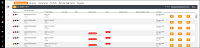
The diagnostic overview page is displayed with the Versions tab open, by default.
Note: The tabs displayed on this page are based on the selected device type.
A list of the devices along with the software version details installed on them, such as IMSI and bootloader is displayed in a table.
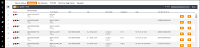
View the peripherals (accessories) attached to the devices, such as external card reader and PTO kit.
1 In
the menu list, click .
A list of the device types is displayed.
2. In the device types list, select a device type. For example, TX-SKY.
Note: The tabs displayed on this page are based on the selected device type.
3. Click the Peripherals tab.
A list of the devices along with their peripherals' details is displayed in a table.
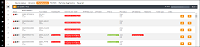
View details of the TX-FLEX application paired with the devices installed on vehicles, such as manufacturer and OS.
1. In the
menu list, click .
A list of the device types is displayed.
2. In the device types list, select a device type. For example, TX-SKY.
3. Click the TX-FLEX tab.
A list of the devices along with their TX-FLEX details is displayed in a table.
Note: The tabs displayed on this page are based on the selected device type.
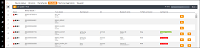
View the issues, such as VCI, initial and actual scan diagnosed for devices installed on vehicles.
1. In the
menu list, click .
A list of the device types is displayed.
2. In the device types list, select a device type. For example, TX-SKY.
Note: The tabs displayed on this page are based on the selected device type.
3. Click the Remote diagnostics tab.
A list of the devices along with the diagnosed details is displayed in a table.
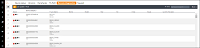
1. In the
menu list, click .
A list of the device types is displayed.
2. In the device types list, select a device type. For example, TX-SKY.
3. Click the Squarell tab.
A list of the Squarell devices along with the firmware details installed on them, such as Serial and DCF is displayed in a table.
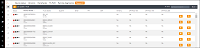
You can perform the following tasks on various tabs of Diagnostics overview:
· Click  to fetch the latest sensor
data of the device. You then need to click
to fetch the latest sensor
data of the device. You then need to click  to refresh
the table with the latest sensor values.
to refresh
the table with the latest sensor values.
· Click  to view the diagnostics
history of device.
to view the diagnostics
history of device.
· Click  to reset a device.
Related topics: