View and update display and language settings for the selected drivers, such as system language, theme color, and screen brightness, using DRIVER CONFIGURATION.
To view and update device configuration settings for drivers:
1. In the menu list, click  and select
  .
.
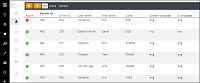
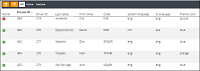
The driver configuration page with the list of drivers and their details are displayed in a table.
2. Select the driver for
which you want to change the configuration and click  .
.
Note: Select multiple drivers to configure their settings, collectively.
The DRIVER CONFIGURATION - CHANGE SETTINGS dialog box is displayed.
Parameter name |
Description/Instruction |
System language |
Select a language for the system UI. |
IS language |
Select a language for the activity question paths. |
Theme color |
Select a theme color. |
Keyboard type |
Select a keyboard type. |
Brightness day(%) |
Drag the slider to set the Screen brightness during day (0-100%). |
Brightness night(%) |
Drag the slider to set the Screen brightness during night (0-100%). |
Device volume(%) |
Drag the slider to set the default device volume (0-100%). |
Navigation volume(%) |
Volume navigation instructions: 0-100% |
Navigation map view |
Select the default view of navigation map (2D / 3D / North). |
Navigation map theme |
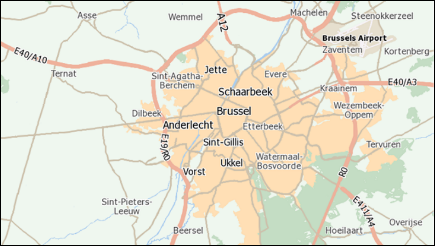
Select a theme for navigation map. Theme 1 (Classic - default)
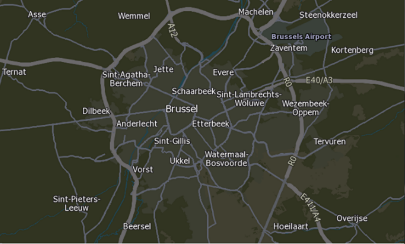
Theme 2 (Alternative)
|
Navigation speed warning |
Set warning for navigation speed. · OFF: no visual and audible warning over speeding. · ON: visual and audible warning when over speeding. |
3. Click SAVE to update the settings.
Related topics: