 or with an icon you have assigned to its group, e.g.
  .
.|
POINTS OF INTEREST |
A point of interest (POI) is a place that is useful to you. This can be e.g. a customer, a petrol station, ...
There are 2 types of POI:
Company POIs
Create and modify company POIs
Create and modify groups of company POIs
Map POIs
Default points of interest that can be filtered on the map. Examples of map POIs are: hotels, restaurants, police stations, banks, airports, ...
|
VISUALISATION |
A single POI
A POI will be indicated either with a general icon or with an icon you have assigned to its group, e.g. .
When you move your mouse cursor over the POI, a tooltip will appear with extra information on that POI (name, address and group).

From this tooltip, it is possible to:
Visualise and edit the details of the POI
Set the POI as a starting, via or end point in your route calculation
Zoom in on the POI
Create a new GeoFencing
Export the position
Create a next stop
Multiple objects (POIs, vehicles and trailers)
Multiple objects are grouped and indicated by a circle and their corresponding general icon on it  .
.
The number in the circle only indicates the number of vehicles, not the total number of objects.
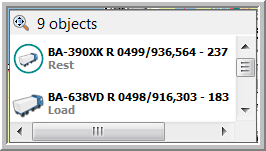
When you move your mouse cursor over a circle, a tooltip will appear giving you an overview of the objects (all vehicles and then all POIs are shown). From this tooltip, it is also possible to select a vehicle to which you can send a message. The more you zoom in, the more the vehicles will be split up. Firstly, you will only see the vehicles, but starting from approximately 1/3 of the zoom bar, the POIs and addresses will also be shown separately on the map.
|
SEARCH FOR |
1) When too many POIs, vehicles, trailers, GeoFencing objects, traffic warnings or routes are shown, your map might not be clear anymore. In order to reduce the number of objects shown, you can filter or hide these objects by using the filter option.
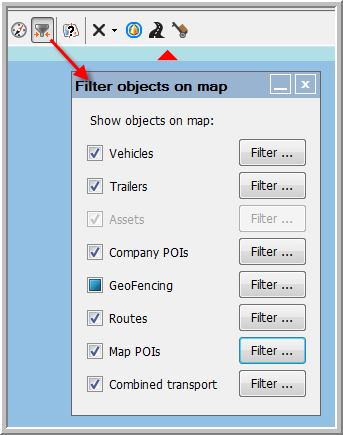
Several objects (vehicles, trailers, company POIs, GeoFencing objects, traffic info, routes and assets) are assigned to (sub)groups. Select the objects or (sub)groups you want to show on the map.
From the moment you deselect an object, the (Select all) checkbox will be coloured blue. In the "Filter objects on map" window, the respective checkbox will also be coloured blue to indicate that only a filtered selection is shown on the map.
Please note that one specific object can be assigned to several (sub)groups. As long as this object is still selected in any other (sub-)group, it will remain visible on the map.
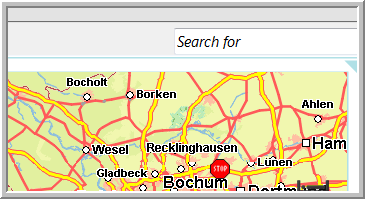
2) A second possibility to search for a specific object on the map is with the "Search for" field on the map.
Please note that:
Regardless of the filter settings on the map, new alarms will always be visualised in the filter and on the map (without overwriting other user settings).
The "Search for" field only applies to the visualised objects on the map. That is why filtered out objects will not appear in the list.