
Go to http://tx-smart.transics.com/download
OR
Scan the following QR code with your device
(requires a QR code reader app installed on your device):
Note: TX-SMART is supported on Android 2.3, 4.2, 4.3, 4.4, 5.0 and later versions. TX-SMART is compatible with all types of smartphone and tablet that run on Android, are MDPI (Medium Dots per Inch) and are able to receive GPS signals.
Screenshots are only indicative. Screen layouts may vary according to your Android version and device type.
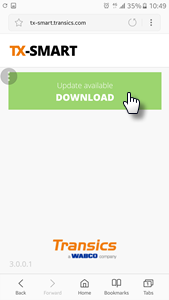
Press Download to download the application to your device.
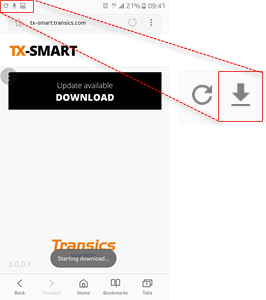
The “Download” icon will appear in the upper left corner of the screen.
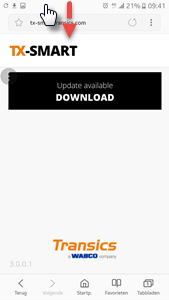
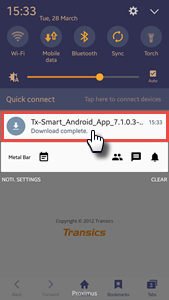
Check the shortcut panel to see the progress of the download by swiping down the top of the screen.
When the download is complete, press the downloaded application: TX-Smart_Android_App°x.x.x.x.apk.
INSTALLATION
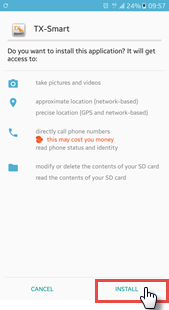
Next, press INSTALL to start the installation.
Problems during installation:
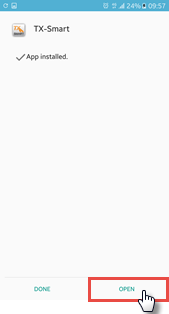
Once the application is installed, press OPEN.
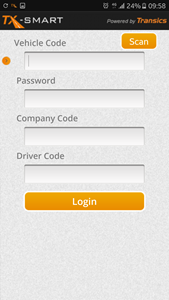
The TX-SMART Login screen will be launched. Enter your credentials to access the application.
Installation blocked
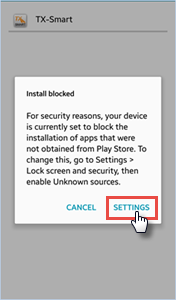
Depending on your security settings, the TX-SMART installation may be blocked due to an incorrect setting.
In that case, access the security settings on your device by pressing SETTINGS in the pop-up or by clicking  in the top menu.
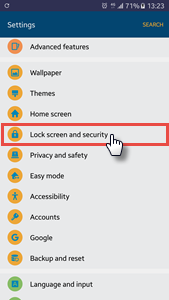
In the settings screen, click Lock screen and security.
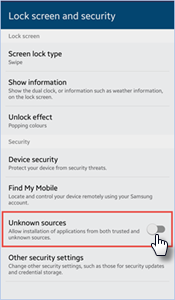
Now, activate “Unknown sources” to allow the current installation.
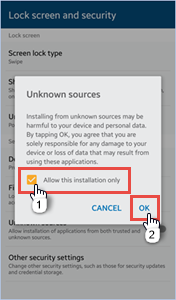
A pop-up will appear upon activation of the setting.
It is recommended to select “Allow this installation only” (selected by default).
Press OK to confirm.
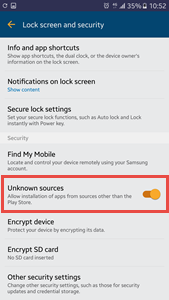
The required setting is now active.
You should now be able to install the application. Open the shortcut panel again to see all downloads.
Press the downloaded application: TX-Smart_Android_App°x.x.x.x.apk. to start the installation.
Once the application is installed, press Open. The TX-SMART Login screen will be launched. Enter your credentials to access the application.
Note: TX-SMART is compatible with all types of smartphone and tablet that run on Android, are MDPI (Medium Dots per Inch) and are able to receive GPS signals.
App not installed
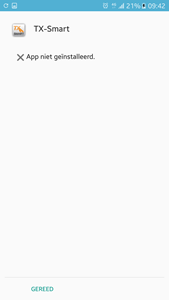
In some cases, the TX-SMART app can't be installed because another version of the app is already installed (when downgrading).
In that case, you will need to uninstall TX-SMART before you can install the new version.
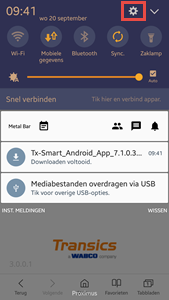
Swipe down the top of the screen and access the settings on your device by clicking in the top menu.
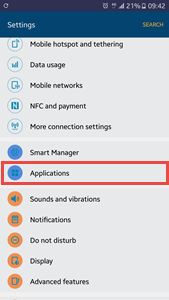
In the settings, click Applications.
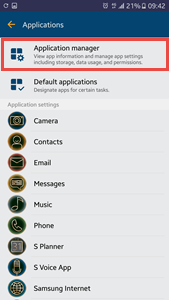
Next, click Application manager.
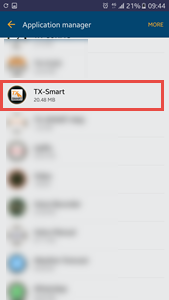
In the list of installed applications, look for TX-Smart.
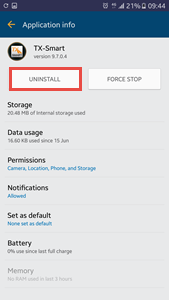
Click TX-Smart and press UNINSTALL to remove the application from your device.
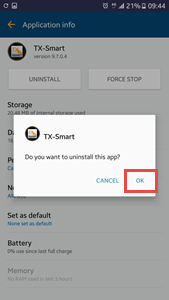
Press OK to confirm the removal.
After uninstalling TX-SMART, press the downloaded application again to install it: TX-Smart_Android_App°x.x.x.x.apk.
See TX-SMART installation above.