|
SETTINGS GENERAL OVERVIEW |
You can get access to the "Settings" menu via the Settings button.
Or, via the menu bar Modules - Settings.

The "Settings" menu contains 4 main items:
Profiles - Management - Tracking - Collaboration
When clicked, each menu item will display various options.
An overview of the menu items:
 Profiles
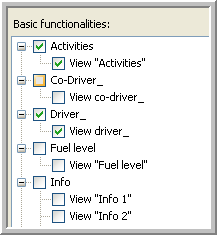
Transport companies can determine which info they want to show by ticking the check boxes in the available list. (preview see fig. below)
 Management
a) Personnel
b) Export folders
c) User synchronization (only as an administrator)
d) User (only for a lessee)
e) Groups
Here you can define groups and subgroups of vehicles and trailers.
f) Translations
g) Formatting

Here you can choose the way in which Vehicles, Drivers, Dispatchers, Trailers and Leased vehicles are displayed in the windows "Vehicle follow-up" and "Driver follow-up". (This is the company wide definition of 'naming' a vehicle / driver / dispatcher / trailer.)
Remark: This does not imply that a company can hide certain information for its dispatchers.
If the user opts for Technical number, for instance, only the technical number of the vehicle will be displayed in the "Vehicle" column.
h) Activities / Registrations
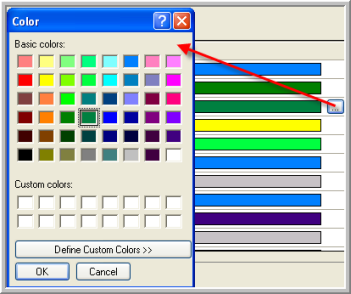
Companies can define their own colour codes for the different activities and registrations.
Click the colour bar of an activity to edit the corresponding colour.

|
|
Select a colour bar and click the button on the right-hand side to open the colour menu and change the colour. |
 Tracking
a) Who tracks what
Companies can assign vehicles and drivers to dispatchers.
b) Outdated info
In this window, a company can indicate after which period of time information is no longer up-to-date.
This is possible for the following data:
Latest FTP
Latest position
Latest status
Latest GPRS
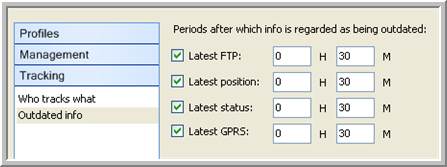
When the information is outdated, the data of the ticked check boxes will be displayed in red in the "Vehicle follow-up" window and the out-of-date status indicator  will be shown in the leftmost column (see fig. below).