|
Remaining driving times - Overlapping data detected |
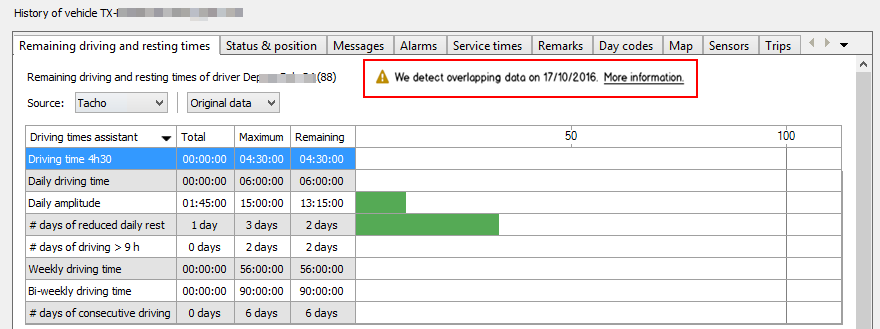
In exceptional cases, it may occur that TX-CONNECT detects overlapping data in the driving / service times of a driver.
In that case, the error below is displayed in the Remaining driving and resting times tab page in the Vehicle follow-up / Driver follow-up module:
| Solution | |
|
Driver is logged in twice (wrong use of the system) If the driver does not log out and logs in on another device, it is possible double data will be registered. |
There are different ways to log in on an on-board computer: driver key, driver code, tacho driver card. · Make sure that the driver always logs out correctly when switching between vehicles.· In case the driver logged in using a driver code on a TX-SKY, use Enforce driver logout to remotely log out the driver (only available on TX-SKY-only environment - not active by default). |
|
Wrong time on the on-board computer In case the on-board computer time is not correct, time differences may cause incorrect data. |
Adjust OBC time: · TX-MAX: Set OBC time on TX-MAX · Quattro: Set OBC time on Quattro+ · TX-SKY: OBC time is taken from GPS time by default |
|
Hardware issue In some cases, a hardware problem may be the cause of overlapping data. If the battery level of the backup battery of the OBC (TX-MAX / Quattro only) has become too low, data may be lost. |
Firstly, verify the current battery level: |
Set OBC time on TX-MAX |
|
|
Use a manager key or SD card to access the manager menu (cf. Create manager key).
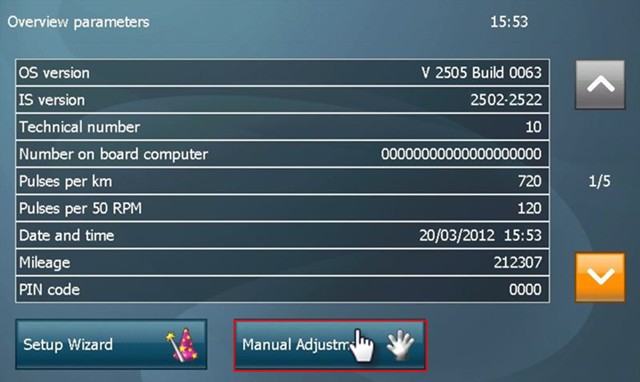
Click on Manual Adjustment. |
|
|
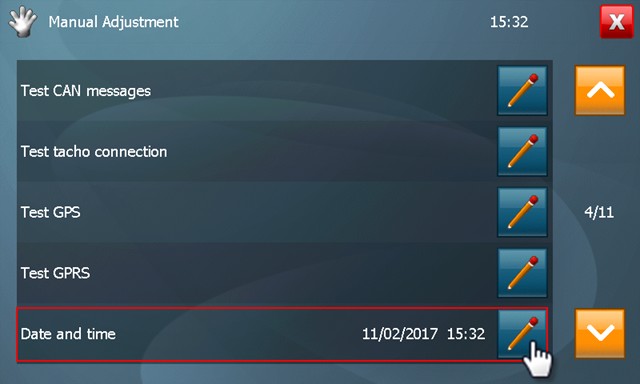
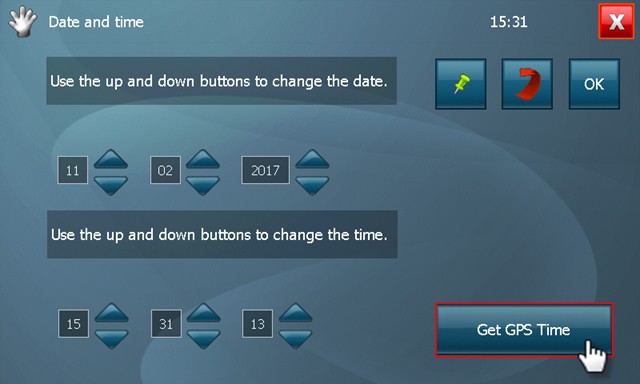
Next, navigate to page 4 / 11 using the arrow buttons and access the Date and time menu. |
|
|
Next, click on Get GPS Time at the bottom. The OBC will now retrieve the date and time from the received GPS info. Click on OK to confirm and close the menu.
For more information, consult the TX-MAX Installation guide.
|
 |
Set OBC time on Quattro+ |
|
|
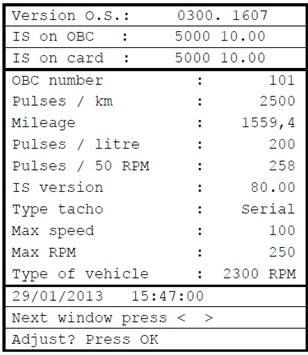
Access the configuration menu using a manager card.
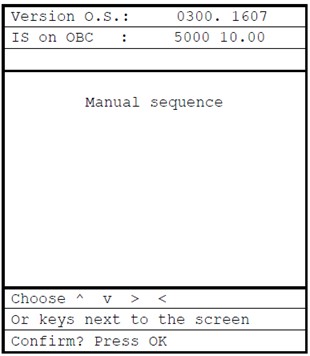
Click on OK > Manual sequence > OK. |
|
|
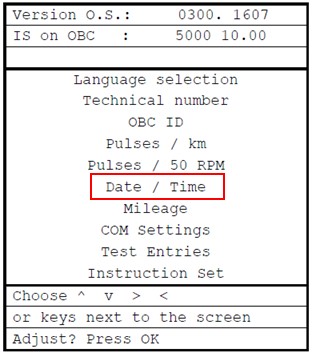
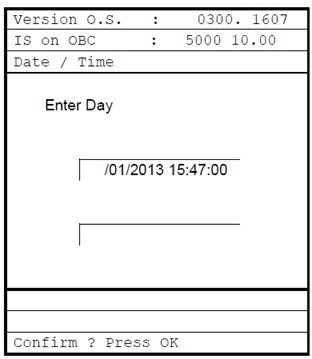
Next, navigate to the option Date / Time and click on OK.
Now, set the correct date and time and click on OK to confirm.
For more information, consult the Quattro + Installation guide
|
|
Check battery level on TX-MAX |
|
|
Use a manager key or SD card to access the manager menu (cf. Create manager key). Click on Manual Adjustment. |
|
|
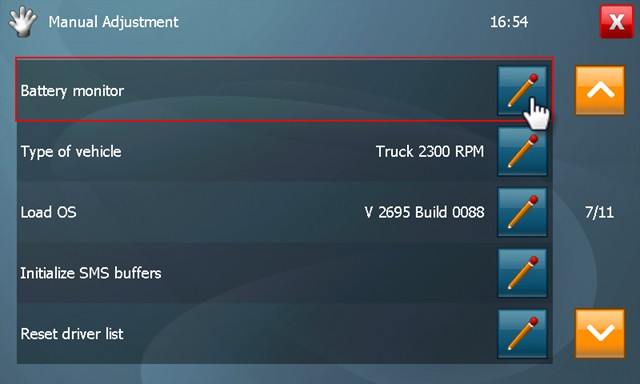
Next, navigate to page 7 / 11 using the arrow buttons and access the Battery monitor menu. |
|
|
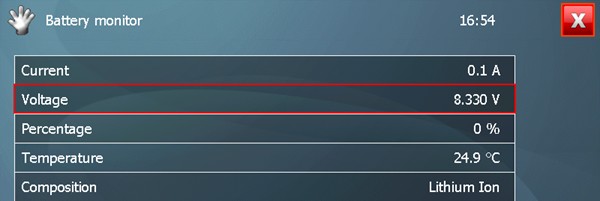
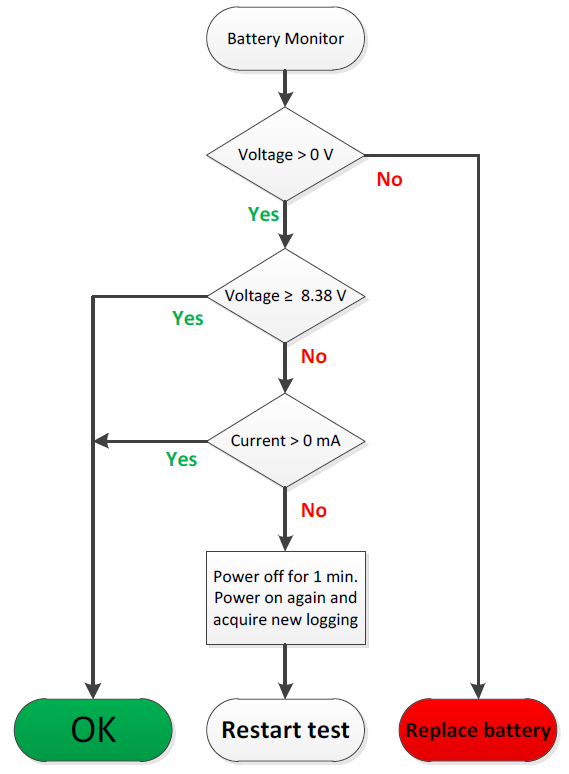
· CASE 1: In case the voltage is above 8.3V, the backup battery works properly. · CASE 2: In case the voltage is below 8.3V, check whether the backup battery still recharges by following the flow chart below. |
|
Battery monitor flow chart
In case the battery needs to be replaced, consult the backup battery replacement guidelines.
Important: The customer is only allowed to perform the replacement of the backup battery after a training to correctly replace the backup battery. These trainings will be led by a Transics Project Engineer.
For more information, consult the TX-MAX Installation guide.
|
|
Check battery level on Quattro+ |
|
|
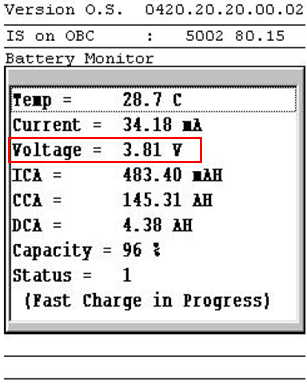
On Quattro+, the battery status can be consulted in the "Battery Monitor" screen in the manager menu. This menu option displays information on the battery status.
· CASE 1: In case the voltage is above 3.6V, the backup battery works properly. · CASE 2: In case the voltage is below 3.6V, check whether the backup battery still recharges by following the procedure below.
In some cases (trucks driving many short distances), the voltage may be below 3.6V (Allowed voltage range = 2.5V – 4.4V). In this case, you can check whether the backup battery is still recharging by leaving the contact on for some time (e.g. 30 minutes). After 30 minutes, compare the initial voltage with the current voltage. Make sure you close and reopen the “Battery Monitor” screen in order to refresh the values! If the voltage has gone up after 30 minutes, the battery is correctly recharging and works properly.
You can check the status at the bottom of the screen for additional information: · Status 1 (Fast Charge in progress): The backup battery is recharging. · Status 2: The battery is charged to its maximum. · Status 3 (Recharge pending): The tension has been lower than 2.4V. If this status remains the same, the battery is damaged and needs to be replaced. In that case, consult the backup battery replacement guidelines.
Important: The customer is only allowed to perform the replacement of the backup battery after a training to correctly replace the backup battery. These trainings will be led by a Transics Project Engineer.
|
|