allows you to create automated reports.
|
Scheduled reports |
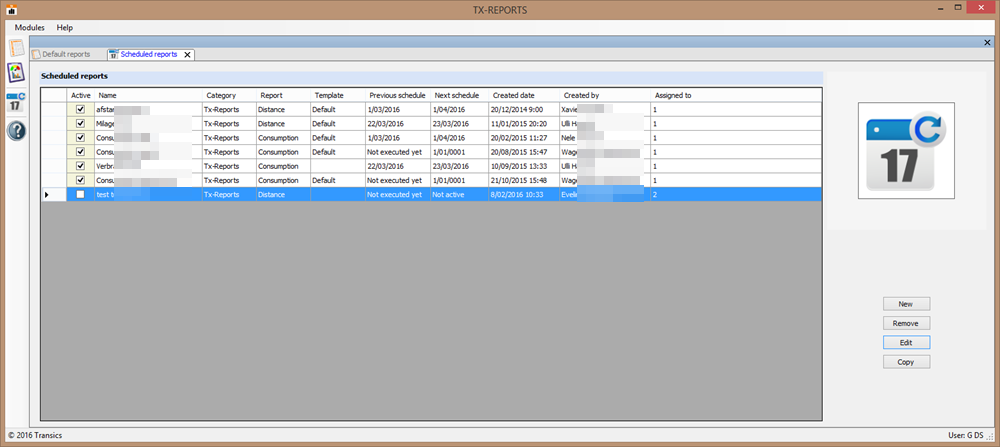
The "Scheduled reports" module allows you to create automated reports.
|
Step |
Process |
|
|
1 |
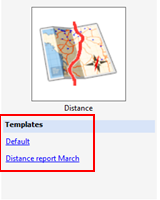
Double-click on the requested report icon to open the default template or simply select the report icon and choose the "default" or a "customized" template on the right. Example: Click |
|
|
|
Available templates:
|
|
|
2 |
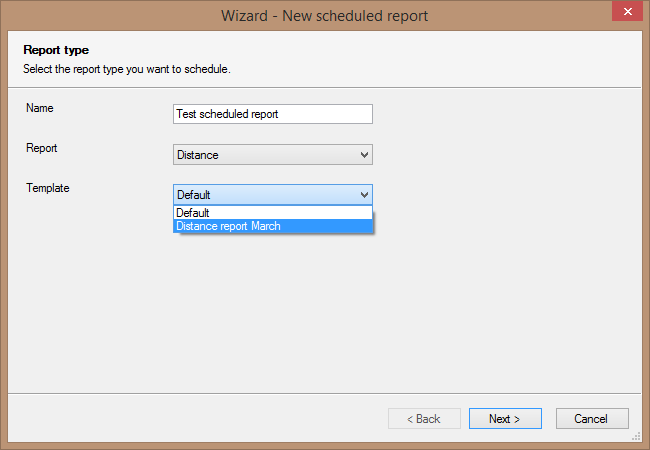
The wizard will now guide you through all the steps to create a scheduled report.
First, select the report type and a template. Enter a name for the report. E.g. Distance report March
|
|
|
3 |
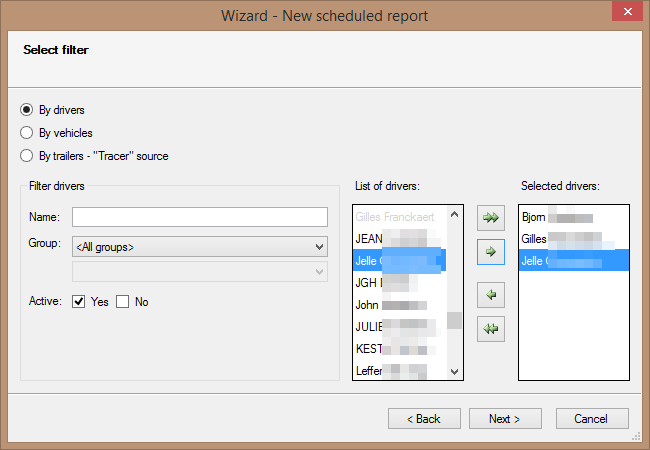
Driver / Vehicle / Trailer selection:
|
|
|
4 |
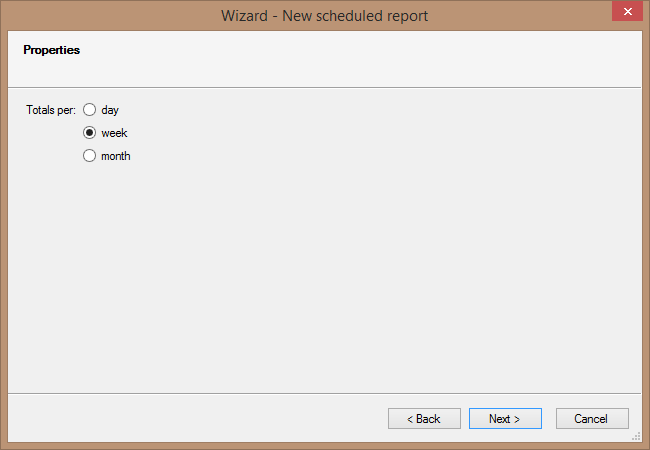
Other report properties (settings depend on report type):
|
|
|
5 |
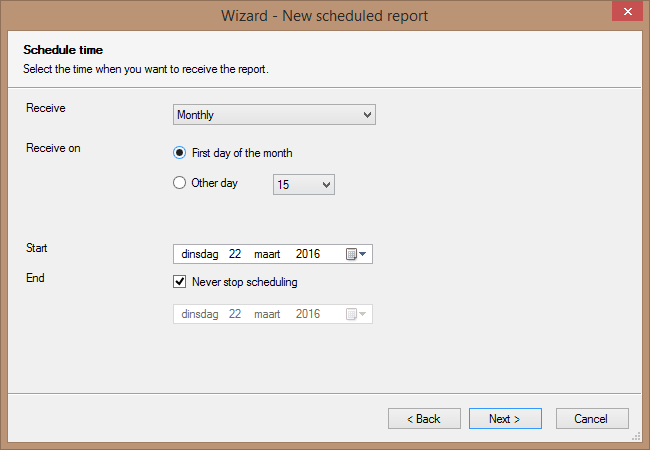
Configure when the report needs to be sent:
|
|
|
6 |
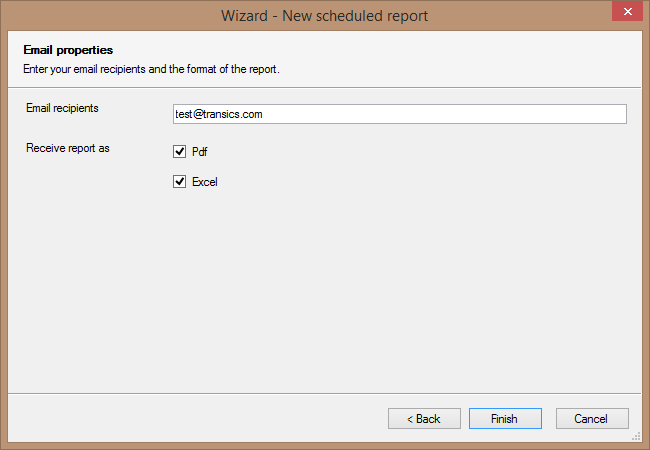
Configure the email recipients and the report format (PDF / Excel):
|
|
|
7 |
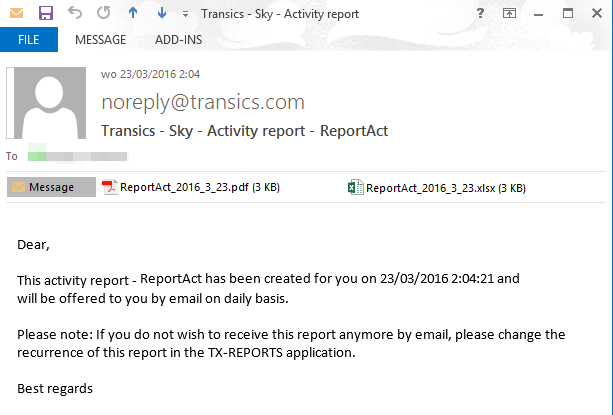
Click "Finish" to create the scheduled report. You will receive the report in your mailbox at the scheduled times.
|
|
 to create a distance report. The available templates will be displayed on the right: