Notification pane

Icons in the status bar

Icon in the Windows taskbar

Sound

Interruption of the screen saver
|
NOTIFICATIONS |
When a new message or alarm arrives or when a vehicle has outdated information, you will get a visual and an audible notification.
There are 5 different types of notification:
|
|
Notification pane |
|
|
Icons in the status bar |
|
|
Icon in the Windows taskbar |
|
|
Sound |
|
|
Interruption of the screen saver |
Remark: If you do not want to use this functionality, contact the Transics' Service Desk to deactivate this functionality for your company. If you decide to deactivate this functionality, this means that no one of your company can make use of this functionality.
|
NOTIFICATION PANE |
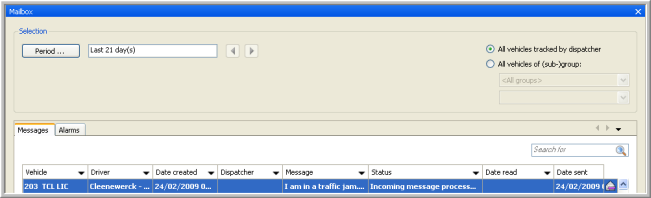
The notification pane appears in the right corner at the bottom of your screen. When clicking this pane, the "Mailbox" will open. In case of a new message, the Message tab page will be displayed. In case of a new alarm, this will be the Alarms tab page.
Remark: When the "Mailbox" opens, it will not automatically filter on period, vehicle or vehicle (sub-) group. As a result, the new message / alarm may not be immediately displayed when opening the mailbox.
|
|
|
Information coming from one vehicle:
|
New message |
An indication of the vehicle and part of the text is shown. The indication of a vehicle can be e.g. the technical number, license plate, code; depending on what you have set in Settings - Management - Formatting. |
|
New alarm |
An indication of the vehicle and part of the alarm message is shown. |
|
Outdated info |
An indication of the vehicle is shown. |
Information coming from several vehicles:
|
New message |
There are new messages. |
|
New alarm |
There are new alarm messages. |
|
Outdated info |
There are new vehicles with outdated info. |
A maximum of 3 notification panes can be shown at the same moment.
|
WINDOWS BAR ICON |
In the Windows bar, the icon  indicates that you have a new message, new alarm or that a vehicle has outdated information.
When moving the mouse pointer over this icon, the tooltip "There are TX-CONNECT notifications" appears. When TX-CONNECT is minimized and you double-click on the icon, TX-CONNECT will open.
|
STATUS BAR ICONS |
In the status bar, you see  (New outdated info),
  (New message),
  (New alarm) and
  (Quick overview). These icons are the same as the status indicators used in the Real-time information part of the "Vehicle follow-up" screen.
Remark: Lessees will only see the clock and the arrow. The message and alarm icon will not be visible.
These icons can adopt 3 statuses:
|
|
|
Outlined only |
There are (is) no unread message(s), no untreated alarm(s) and no outdated info. |
|
|
|
Colored icon |
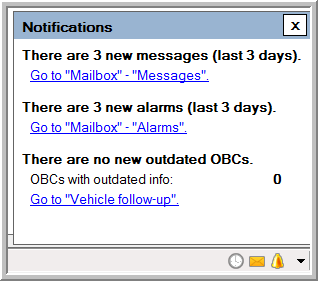
There are new unread messages, new untreated alarms and new outdated vehicles. Note: Unread messages and untreated alarms are only considered "New" if they are less than 3 days old. |
|
|
|
Greyed icon |
There are still unread messages, untreated alarms and outdated vehicles left. |
Clicking on one of these icons will open a quick overview and the colored icon will turn grey.
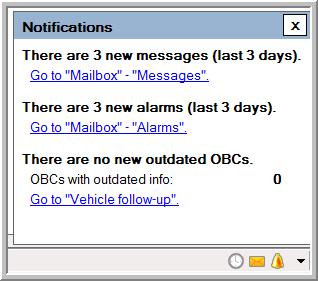
From this window, you can immediately open the "Vehicle follow-up" screen or "Mailbox", tab page Messages or Alarms.
Remark: When the "Mailbox" opens, it will not automatically filter on period, vehicle or vehicle (sub)group. As a result, the new message / alarm may not be immediately displayed when opening the mailbox.
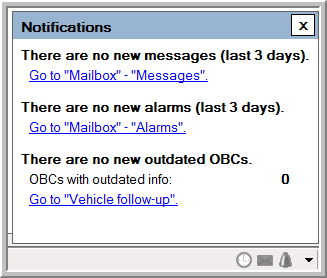
When you close this window, the information is set as handled. When you reopen the quick overview, you will see that there are no new messages, no new alarms and no new outdated vehicles.
|
|
|
|
Quick overview with new information. |
Quick overview after closing and reopening it. |
|
SOUND AND INTERRUPTION SCREEN SAVER |
For every notification, a sound is played.
When the screen saver is running and, e.g. a new message arrives, it will be interrupted.