|
MAP |
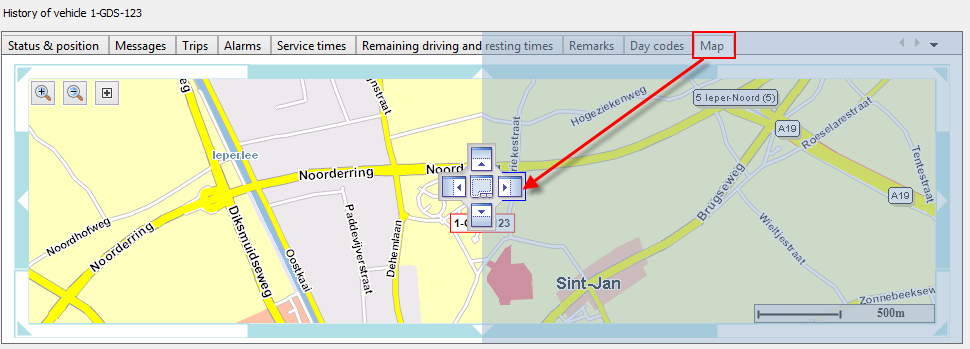
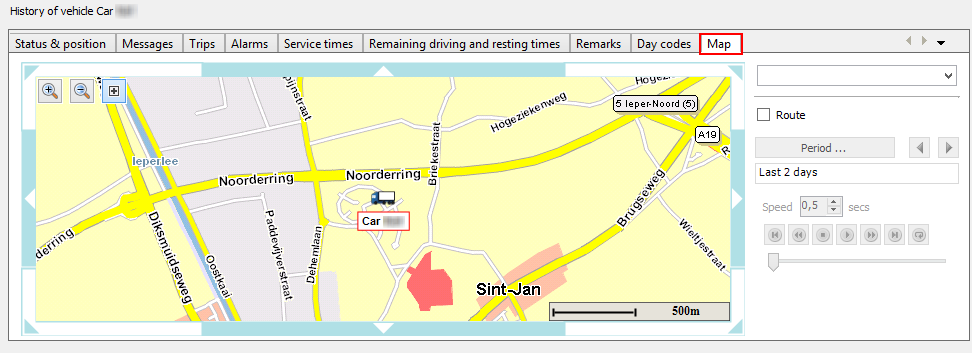
As from TX-CONNECT version 11.23, an additional tab page has been added to the Vehicle follow-up module - History: "Map".
In the Map tab page, you can view the position history of the selected vehicle / trailer.
By default, the latest position is displayed.
Map buttons |
|
|
|
Zoom in Zoom out Show / hide route control panel Zoom to route: Show the entire route of the selected period on the map. |
|---|---|
Route control panel |
|
Map view |
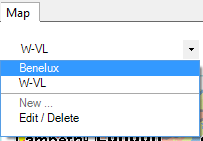
You can also select one of the available map views in the drop-down list (cf. Custom maps):
|
Route |
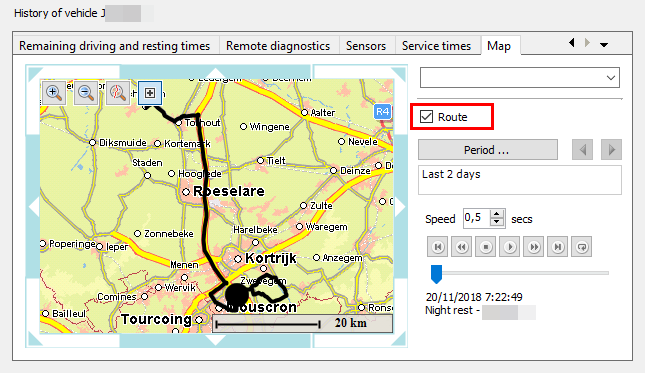
Select the Route checkbox to display the history of the selected period (e.g. Last 2 days):
|
Period |
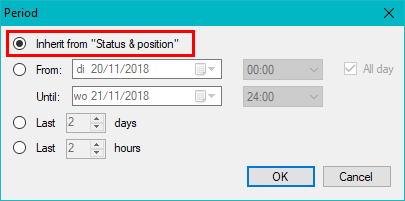
When the Route checkbox is selected, you can set the period for the visualized route. As from TX-CONNECT version 11.45.14, you can select "Inherit from "Status & position"" to use the selected period from the "Status & position" tab.
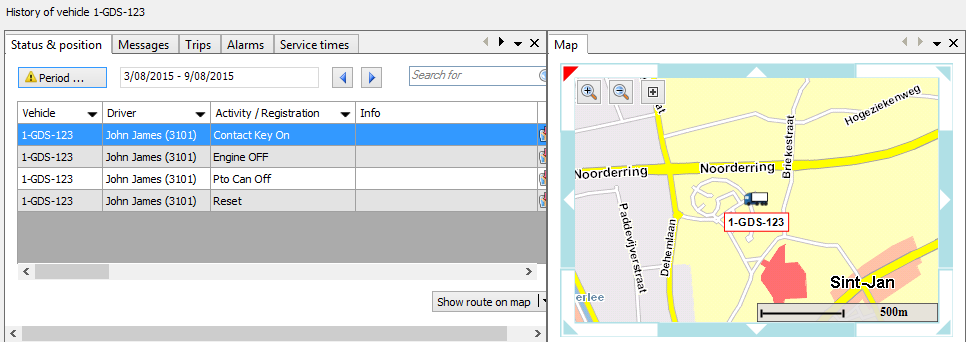
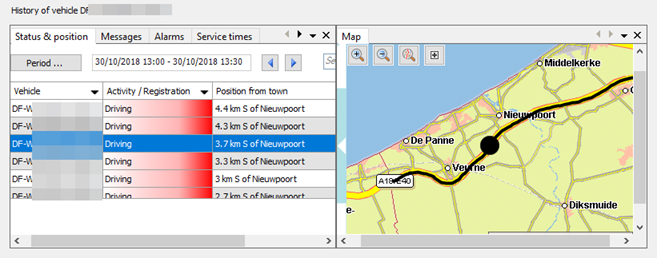
In this manner, you can instantly visualize the selected position within a route on the map. For improved visibility, you can place both tabs side by side (cf. the Note below). The position on the map will change as you select another line in the "Status & position" tab.
|
|
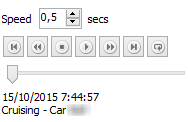
Use the replay control buttons to replay the vehicle / trailer movement for the selected period. |
|
|
|
Configure the replay speed |
|
Replay controls |
|
|
Position Date / Time Activity - Vehicle |
|
Replay controls |
|
|
|
To start point |
|
Rewind |
|
|
Stop |
|
|
Play |
|
|
Forward |
|
|
To end point |
|
|
Repeat (Toggle on/off) |
|
Note: You can also display the Map tab page next to another tab page by dragging the tab to the center of the window (cf. Floating windows).