|
ESTIMATED TIME OF ARRIVAL (ETA)
|
How does it work?
|

|
The driver defines his destination on the on-board computer (OBC).
|
|

|
The calculated estimated time of arrival is sent to the home base.
|
|

|
The user can check the information in the Real-time information (= upper part) of the "Vehicle follow-up" window.
|
|
|
The position of the vehicle is calculated every minute, but the new ETA message will be sent only if there is a difference of minimally 15 minutes compared to the previous calculation.
|
The following columns for ETA information are available:
|
Column
|
Available values
|
| ETA |
The driver's estimated time of arrival. |
| ETA DESTINATION |
Location where the driver is heading to. |
| ETA STATUS |
What is the current status of the driver?
5 possibilities:
-
On target: Appears when the message STARTED is received (= After the driver has chosen a destination on the on-board navigation system and has started the route).
-
Delayed: Appears when the driver is minimally 15 minutes behind on ETA calculated at the start of the route.
-
Early: Appears when the driver is minimally 15 minutes ahead of the ETA calculated at the start of the route.
-
Aborted: Appears when the driver closes the navigation application.
-
Arrived: Appears at the moment when the driver reaches his destination.
|
| ETA LAST UPDATE |
When did the last ETA message arrive? |
| PREVIOUS ETA |
Here you can compare the ETA with a previous ETA calculated for the same destination.
When a new ETA message is received, it will automatically appear in the "ETA" column (= first column). The former message will then simultaneously be moved to the "Previous ETA" column (= last column). |
Remark:
The destination mentioned in the ETA messages = the distance compared to a town (not to a specific address). The remaining distance is displayed in km with one decimal (if the distance is < 1000 m, e.g. 500 m, it will be shown as 0.5 km).
TX-SKY
On TX-SKY, the ETA function is active by default. As a result, the ETA will be automatically calculated when selecting a destination in the navigation module or in the planning module: an address, a POI, a route, a ZIP code ...
As from TX-CONNECT version 11.45.14, the ETA calculation also takes into account the required resting times (when active).
The resting time will only be added to the ETA when the following conditions are met:
-
The setting is active.
-
Device type: TX-SKY on-board computer
-
A valid driver is logged in.
-
A digital tachograph is connected to the on-board computer.
In case these conditions are not met, the estimated time of arrival may still be visualized, but it will NOT include the resting times.
In that case, the ETA value is displayed in GRAY color.
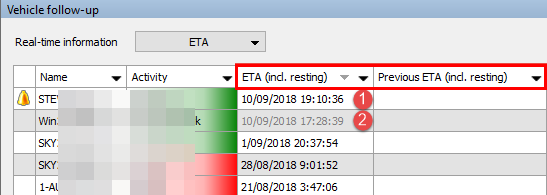 |
-
(In black color): The calculated ETA includes the resting times.
-
(In gray color): The calculated ETA does NOT include resting times.
|
TX-MAX (Fleet)
|
Important remark: By default, the ETA function is NOT activated! (TX-MAX only)
|
|
To activate or deactivate the ETA function, you will have to send a text message with the following information:
|
|
1. Select the vehicle from which you want to activate the ETA function.
|
|
2. Double-click the envelope icon at the utmost right column ("Vehicle follow-up" window).
|
|
3. Type :%Me= ∞∞ (do not forget the colon).
The value is a hexadecimal value 00 or 0f.
00 = The ETA function is NOT activated.
10f = The ETA function is ACTIVATED.
∞∞ will have to be replaced either by 00 or 10f
|
|
To Activate the ETA function, you will thus have to type the following message: ':%Me=10f'
|
|
To Deactivate the ETA function, type ':%Me=00'
|
|
4. Send the message.
The message will not be treated as a text message but as a system command.
|
Back - General overview - Real-time
