
OK: the route has been successfully saved (even without attached vehicles) or sent.

Communication error: an error has occurred while sending the route to one of the vehicles.

Sending: the route is being sent to one of the vehicles.
|
ROUTE MANAGEMENT |
The "Route management" screen gives you an overview of the created routes.
Here it is possible to:
§ Check and edit details of the route.
§ Show the selected route on the map.
§ Create a new route.
§ Copy a route.
Note that the route settings (TLN profile, avoid toll roads / ferries ...) are saved in the personalised view, NOT in the route itself. As a result, it is possible that the calculated route on the map does not fully correspond to the route in the "Route management" screen.
|
VISUALISATION |
The screen is divided into three zones:
§ The upper left zone contains the "Route filter".
§ The upper right zone contains the "Route" grid, showing the filter results and the route status:
|
|
OK: the route has been successfully saved (even without attached vehicles) or sent. |
|
|
Communication error: an error has occurred while sending the route to one of the vehicles. |
|
|
Sending: the route is being sent to one of the vehicles. |
It is always possible to resend a route in case of problems or send a selection of various routes to several vehicles (synchronisation).
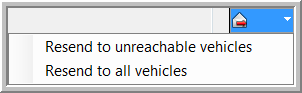
§ The lower zone contains two tab pages with detailed information on the selected route and the vehicles that are assigned to it.
§ "General" tab page
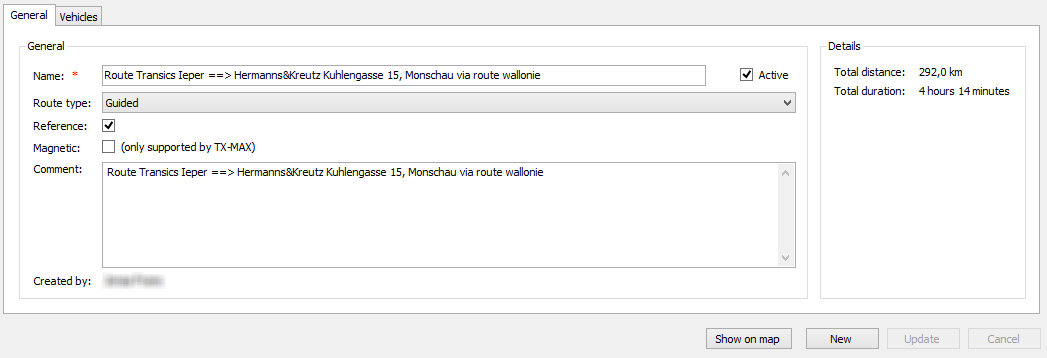
Monitored: Select this option if you want the route points to be followed in the exact right order.
Reference: Select this checkbox if you want to label this route as a reference route: the ideal route, for instance as it is was driven by an experienced driver (Cf. Filter_routes).
Magnetic: As from TX-CONNECT version 11.23, routes can be set to "Magnetic" (only for TX-MAX devices). A magnetic route will draw the route calculation in the direction of the magnetic route, rather than directing it directly to one of its route points. (Remark: for TX-SKY devices, all route types are magnetic).
In the route filter on the map, it is possible to filter on these routes.
§ "Vehicles" tab page
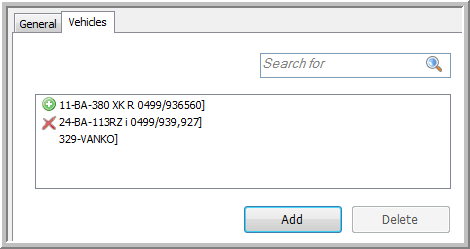
|
|
Symbol when adding a new vehicle to a saved route. |
|
|
Symbol when deleting a vehicle from a saved route. |
|
|
Show the selected route on the map: The "Map" module will automatically open and visualise the route. |
|
|
Create a new route: Firstly, you will be asked if you want to copy the currently selected route. The "Map" and the "Route calculation" window will automatically open. Learn more about route calculation. |
|
|
Save a modified route. |
|
|
Undo the modifications made to a route. The last saved values are restored. |
Back - Settings General overview
Related topics: How do I create a route - Convert a historical route - Filter routes - Route calculation - Create your own truck profiles


