§ By clicking the Search address button in the toolbar  .
.
§ By clicking the Get address button in the toolbar  and then on the map.
|
CREATE A NEW GEOFENCING |
On the map, you can create a new GeoFencing object starting from:
An address
There are two ways to find and display an address on the map:
§ By clicking the Search address button in the toolbar .
§ By clicking the Get address button in the toolbar and then on the map.
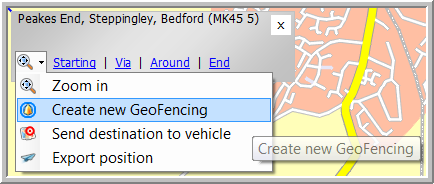
Once you have found the address, click the Create new GeoFencing button:
§ By clicking Create GeoFencing in the drop-down list next to the flag and then on the map.
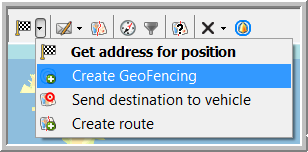
This option allows you to create a GeoFencing object in an area that doesn't have an address, such as a large industrial zone or a port.
When using this option, you will have to enter the name of the GeoZone yourself before continuing. Remind that with the other options, TX-CONNECT automatically uses the address as name for the GeoZone.
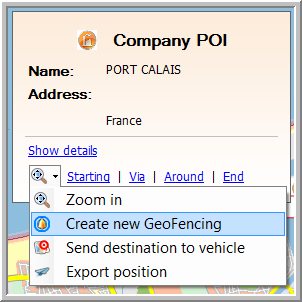
A POI
Search for the POI on the map you want to create a GeoFencing object for and click the Create new GeoFencing button:
A vehicle / trailer
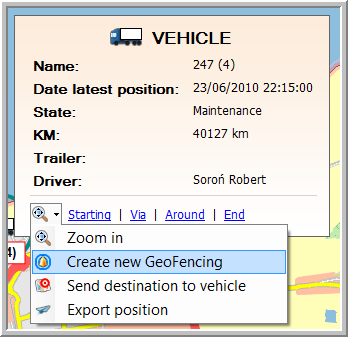
Remind that it is impossible to create a GeoFencing object for a rented vehicle.
Click here fore more information about GeoFencing.