|
STATUS & POSITION |
This tab page gives you an overview of the activities executed with the vehicle selected in the Real-time information part.
From here you can:
Show the position of a vehicle on map.
Show the route of a vehicle on map.
Export the position and route of a vehicle to a file.
Export data to an Excel file or PDF document.
Remark: If this tab page is not visible, click on the black arrow at the right side of your screen and check the box next to the specific tab page.

|
SHOW POSITION ON MAP |
To view the position of the selected vehicle at a certain time stamp on map, click on the  icon.
icon.
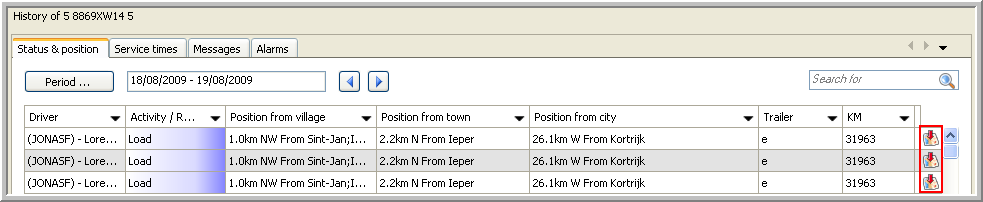
The map will automatically open and the position of the vehicle is shown. A box indicates the corresponding vehicle and driver, the date / time of the activity and the status of the vehicle.

To close the box, click on the Close button or click on the black arrow next to the  icon in the toolbar and select "Close all address info".
|
SHOW ROUTE ON MAP |
To view the route of the selected vehicle for a certain period on map, click on the Show route on map button.
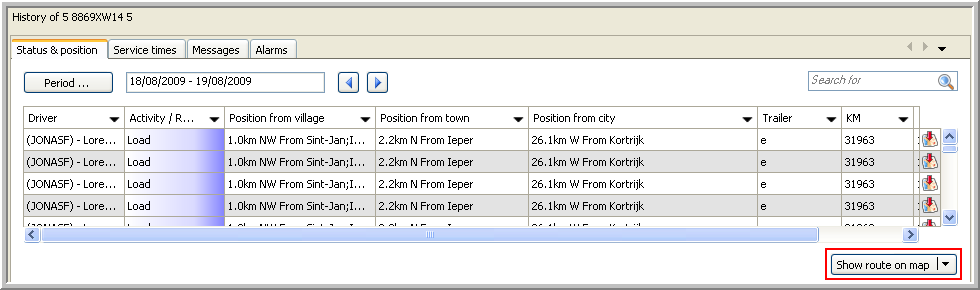
The map automatically opens displaying the route the vehicle has travelled.

|
EXPORT POSITION / ROUTE |
This functionality gives you the possibility to export the position and route of a vehicle to a GPX file, which can be used by other applications.
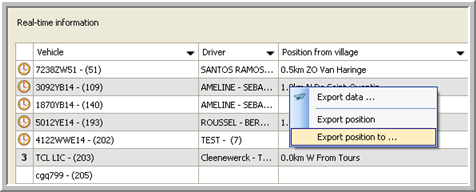
 To do so, right-click and select "Export position to ...". Or, click the arrow next to Show route on map and select "Export route to ...".
|
|
|
 Choose the location where you want to save the file and click Save.
|
EXPORT DATA |
Click here to see how you can export data from the Status & Position data grid to an Excel file or a PDF document.